Dashboard
Status: 🧪 Beta
The Agent Teams dashboard is an embedded React SPA that opens as a VS Code panel. It is the primary interface for creating and managing agents, teams, and project configuration.
Opening the Dashboard
Click the Agent Teams icon in the VS Code sidebar:
Or use the Command Palette (Ctrl+Shift+P / Cmd+Shift+P) → Agent Teams: Open Dashboard

Home Page
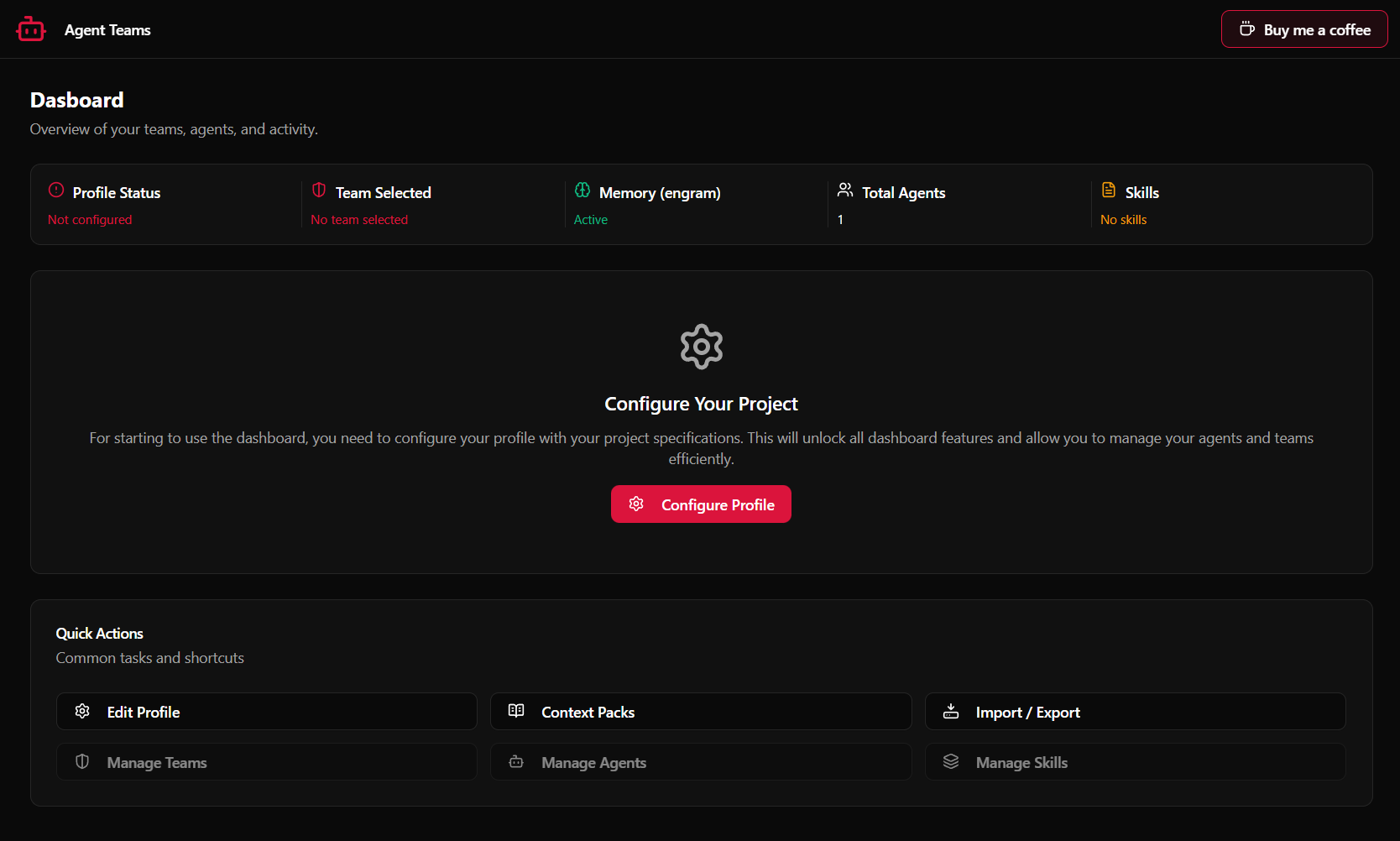
The main dashboard page shows a live summary of your workspace:
| Card | What it shows |
|---|---|
| Stats | Active team name, total agent count, sync status, and Engram integration health |
| Sync Status | Breakdown of pending changes (agents to create / update / skip) with a one-click sync button |
| Engram Banner | First-time configuration prompt — only shown if the Engram memory extension is not set up |
| Quick Actions | Shortcut buttons to the most common pages (Create Agent, Create Team, Open Profile) |
Navigation
Use the sidebar icons or the Quick Actions card to move between pages:

Profile Editor
Edit your project profile — technologies, paths, commands, context packs, and sync targets. The dashboard home page shows a setup prompt when no profile exists yet. See Profile Editor for details.
Team Manager
Lists all teams with their name, description, agent count, and active status. From here you can create new teams, activate a team, or open one for editing. See Teams for details.
Agent Manager
Shows all loaded agents organized by role (Router, Orchestrator, Worker). Click any agent to edit it, or click Create Agent to open the wizard. See Agents for details.
Create Agent / Edit Agent
The 6-step agent creation wizard. Covers identity, scope, workflow, skills, rules, and output configuration. A live preview appears in the right sidebar throughout the process.
Create Team / Edit Team
The team creation wizard. Enter a name, select member agents, and preview the configuration. Edit Team adds options to set the team as active or delete it.
Skills Browser
Two-tab view: your project's local skills and the community registry. Browse, search, filter by category, and install skills from the community directly. See Skills Browser for details.
Context Packs
Manage the context packs available in your workspace. Toggle packs on or off, adjust priority, create new packs, and import markdown files as packs. See Context Packs for details.
Import / Export
Back up and share your global agent catalog. Export to JSON, import from a file, or reset the catalog. See Profile Editor — Import / Export for details.
Stats Card
The stats card updates automatically when agents or teams change:
| Card | What it shows |
|---|---|
| Profile Status | Whether the project profile is active, not configured, or in error |
| Team Selected | The team currently selected for sync operations |
| Engram | Active, Not installed, or Not configured |
| Skills | Count of skills installed in .agent-teams/skills/ |
| Total Teams | Number of teams registered in the global catalog |
| Total Agents | Number of agents registered in the global catalog |

Catalog Sync
When you open the dashboard, Agent Teams automatically compares the entities present in .agent-teams/ (agents and teams on disk) with the global catalog — the persistent index stored outside the project.
Auto-capture of new entities
If Agent Teams finds agents or teams on disk that are not yet registered in the catalog, it validates their structure and acts accordingly:
- Valid entities are captured to the catalog automatically and silently. The stat counts update in the same refresh cycle. No action is required from you.
- Entities with errors are flagged with a warning badge on the corresponding stat card.
Persistence: Entities captured this way are stored in the catalog as explicit imports (
source: import). This means they survive future workspace operations — even if you delete the YAML file from disk, the catalog retains the last known data.
Warning badge
If one or more entities have a structural problem that prevents capture, a small numbered badge appears on the Total Agents or Total Teams stat card.
| Badge state | Meaning |
|---|---|
| No badge | All on-disk entities are registered or have been auto-captured |
1, 2, … | That many files could not be captured due to validation errors |
Hover over the badge to see a tooltip listing each affected file ID and the specific validation error (e.g. missing required field: role).
Resolving a validation error
- Open the flagged file in
.agent-teams/agents/or.agent-teams/teams/. - Fix the reported field (see Required fields for agents or ensure
idandnameare present for teams). - Save the file — the dashboard refreshes automatically, re-validates, and captures the corrected entity.
Duplicate IDs
Agent Teams identifies each entity by its id field (or _metadata.id for agents). If two files share the same id, only the first one encountered is used — the duplicate is silently ignored. Rename the id in one of the files to register both independently.
First-Time Setup Workflow
If you are opening Agent Teams for the first time in a project, follow this sequence:
- Configure the project profile — the home page shows a setup prompt. Click it to open the Profile Editor, fill in your technologies, paths, and commands, then save.
- Create your agents — go to Agent Manager → Create Agent and walk through the wizard for each agent you need.
- Create a team — go to Team Manager → Create Team, add your agents, and save. Set it as the active team.
- Sync — the home page Sync Status card will show pending changes. Click Sync to generate the
.github/agents/files and activate your agents in Copilot Chat.
Refreshing Data
The dashboard reacts to VS Code state changes automatically. If you edit a YAML file directly outside the dashboard, the stats and sync status update on the next file save.
To force a full reload: Command Palette → Agent Teams: Reload Agents